
TUNESTUDIO #F8Z109EA - Audio accessory BELKIN - Free user manual and instructions
Find the device manual for free TUNESTUDIO #F8Z109EA BELKIN in PDF.


User questions about TUNESTUDIO #F8Z109EA BELKIN
0 question about this device. Answer the ones you know or ask your own.
Ask a new question about this device
Download the instructions for your Audio accessory in PDF format for free! Find your manual TUNESTUDIO #F8Z109EA - BELKIN and take your electronic device back in hand. On this page are published all the documents necessary for the use of your device. TUNESTUDIO #F8Z109EA by BELKIN.
USER MANUAL TUNESTUDIO #F8Z109EA BELKIN
Express Business Park
Shipton Way, Rushden
NN10 6GL, United Kingdom
+44 (0) 1933 35 2000
+44 (0) 1933 31 2000 fax
Belkin SAS
130 rue de Silly
92100 Boulogne-Billancourt, France
+33 (0) 1 41 03 14 40
+33 (0) 1 41 31 01 72 fax
Belkin GmbH
Hanebergstrasse 2
80637 Munich, Germany
+49 (0) 89 14 34 05 0
© 2007 Belkin International, Inc. All rights reserved. All trade names are registered trademarks of respective manufacturers listed. iPod, iTunes, Mac, Macintosh, iMac, PowerBook, Apple, iBook, Mac OS are trademarks of Apple Inc., registered in the U.S. and other countries. Windows and Windows Vista are either registered trademarks or trademarks of Microsoft Corporation in the United States and/or other countries.
User Manual
Manuel de l'utilisateur
Benutzerhandbuch
Handleiding
Manual del usuario
Manuale d'uso
ENGLISH
WELCOME 1
Key Features 1
TUNESTUDIO BASICS 2
What You Can Do with Your TuneStudio 2
What You Can Connect to Your TuneStudio 2
WHAT'S IN THE BOX? 3
Cables You May Need 3
iPod,Windows,ANDMacCOMPATIBILITY 4
iPod 4
Windows 4
Macintosh 4
To set up your TuneStudio 5
TUNESTUDIO TOUR 6
TuneStudio Inputs and Outputs 7
Types of Microphones 11
Recording with Multiple Microphones 11
RECORDING A PODCAST 12
Tips for Recording a Podcast 13
Tips for Recording Acoustic Instruments 15
Tips for Recording Electrical Instruments 15
RECORDING A CHOIR 16
Tips for Recording a Choir 16
RECORDING TO OR FROM A COMPUTER 17
Tips for Recording to or From a Computer 18
Copying a Recording to Your Computer 21
PROTECTING YOUR HEARING 22
TROUBLESHOOTING 23
If the Recording Menu button doesn't work 23
If your TuneStudio won't turn on 23
If you don't hear anything in the studio monitors or headphones 23
If the microphone volume is too low 23
If an instrument's volume is too low 23
If the sound is distorted 24
If you hear a "hum" sound in the recording 24
If your recordings are only in the left channel 24
If your computer doesn't see your TuneStudio 24
TUNESTUDIO SPECIFICATIONS 25
LEARNING MORE 27
GLOSSARY 28
Balance 28
Boost 28
Clipping 28
Cut 28
dB (decibel) 28
Distortion 28
Feedback 28
Gain 28
Monitor 28
Pan ("panorama") 28
RCA ("Radio Corporation of America") 28
TRS ("Tip-Ring-Sleeve") 28
USB ("Universal Serial Bus") 28
XLR 28
INFORMATION 29
NOTES 32
Thank you for purchasing a TuneStudio iPod recording studio.
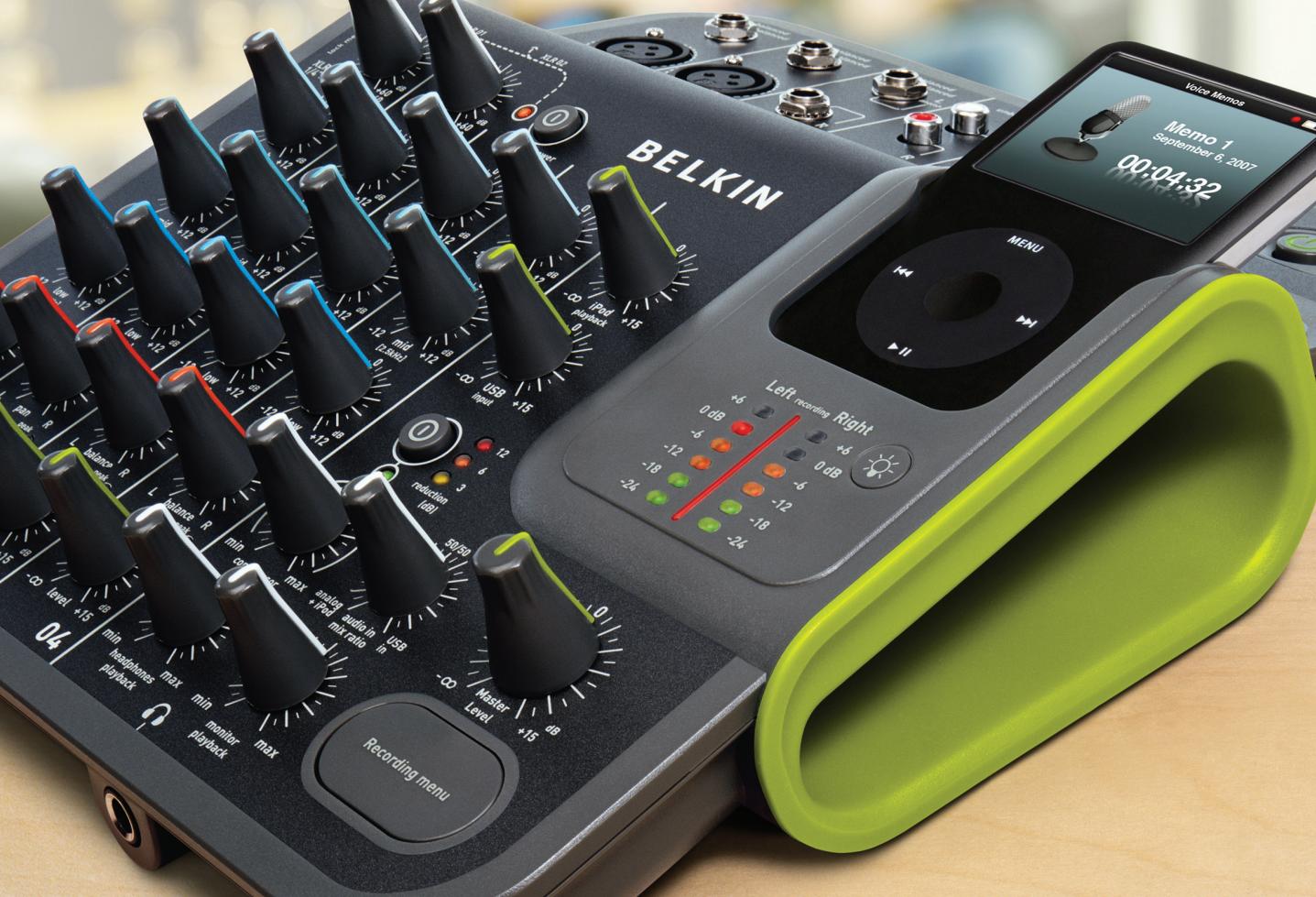
We designed TuneStudio for a wide range of users, from novice podcasters to experienced musicians. It's compact, portable, and sturdy enough to stand up to life in a rehearsal room. Its shape gives you easy access to the controls and simplifies cable management. The iPod docking cradle keeps your iPod secured in a position that allows convenient and comfortable access to the screen and click wheel.
Your TuneStudio will help you make the most of the high-quality recording capabilities of the iPod. You can connect four instruments or audio sources. Each audio input channel includes equalization (EQ), pan, and level controls. Input channels 1 and 2 can also provide a gain control and optional phantom power for microphones. The USB port is bidirectional, and therefore, can be used as a fifth recording source, should you need the additional input.
We are pleased that you chose to purchase a TuneStudio, and we have designed it to give you many years of high-quality recording and mixing.
Have fun!
Key Features
- Record directly to your iPod in 16-bit, 44kHz digital audio quality
- Record to and from your PC or Mac computer using USB 1.1 or higher
- Instantly play back your recordings directly from your iPod
- Charge your iPod while recording
4-channel mixing console - 3-band EQ, pan/balance and level controls to perfectly mix and enhance each channel
- 2 microphone inputs with optional phantom power and up to 60 dB of gain
- High-quality stereo compressor with gain control to keep the audio levels within the recording limits of the iPod and avoid clipping
Your TuneStudio combines multiple audio sources ("channels") into one stereo signal. You can use the following controls to enhance each channel's sound before it is mixed with the other channels:
- Level control to set the volume
- Pan (or "balance" for stereo channels) control to move the sound to the left or right
- Low, mid, and high EQs ("equalizers") to fine-tune the sound
Your TuneStudio also includes a compressor that can be used to enhance your recordings and keep the volume levels within the recording limits of the iPod.
What You Can Do with Your TuneStudio
- Record to or from an iPod
- Record to or from a computer
Record from up to 5 audio sources - Listen to your mix while recording, with studio monitors or headphones
- Play back your recordings from your iPod immediately after recording
What You Can Connect to Your TuneStudio
You can connect almost any instrument, microphone, or other audio device to your TuneStudio.
Your TuneStudio has inputs for four different types of cables: XLR, 1/4" TRS, RCA, and USB. With the right cables or audio connector adapters, you should be able to connect almost any audio source, including:
- CD players
Computers - Drum machines
- Guitars and bass guitars
- Microphones
- Synthesizers and keyboards
The following items should be in your TuneStudio box:
TuneStudio
- CD with recording software
- 1/8" (3.5mm) to 1/4" (6.35mm) headphone cable adapter
- AC power supply and power cable
- Adapter inserts for iPod
Warranty card
- This user guide
Cables You May Need
You will need the following cables to connect microphones ("mics"), instruments, and other devices to your TuneStudio:
| Device | Cable Type | Example |
| Electronic audio sources (such as CD players) | RCA stereo | |
| Instruments | TRS 1/4" | |
| Computers | USB | |
| Microphones and high-end professional audio equipment | XLR |
iPod
iPod classic
80GB 160GB
iPod nano
3rd generation (video)
4GB 8GB
iPod
5th generation (video)
30GB 60GB 80GB
iPod nano
2nd generation (aluminum)
2GB 4GB 8GB
Windows
Pentium II 350MHz (Pentium III 500MHz or faster recommended)
64MB RAM (128MB recommended)
Windows® XP or Windows Vista™
CD drive
USB 1.1 or USB 2.0 port (USB 2.0 recommended)
Macintosh
G3, G4, iMac, iBook, or PowerBook with native USB support
64MB RAM (128MB recommended)
CD drive
Mac OS X version 10.2.8 "Jaguar" or later
It only takes a few minutes to set up your TuneStudio and start recording.
To set up your TuneStudio:
1 Verify all devices are turned off and all level controls are set to - (completely to the left).
2 Connect the input sources.
3 Insert your iPod into your TuneStudio's iPod dock.
4 Connect the PC, studio monitors, and/or headphones.
5 Plug TuneStudio and other devices into AC power.
6 Turn everything on in the following order:
Input sources
- TuneStudio (turning on your TuneStudio will turn on your iPod)
- Studio monitors, headphones, and/or computer
7 When turning off, always turn off devices in the following order:
- Studio monitors, headphones, and/or computer
TuneStudio
Input sources
8 Go to www.belkin.com/registration to register your TuneStudio.
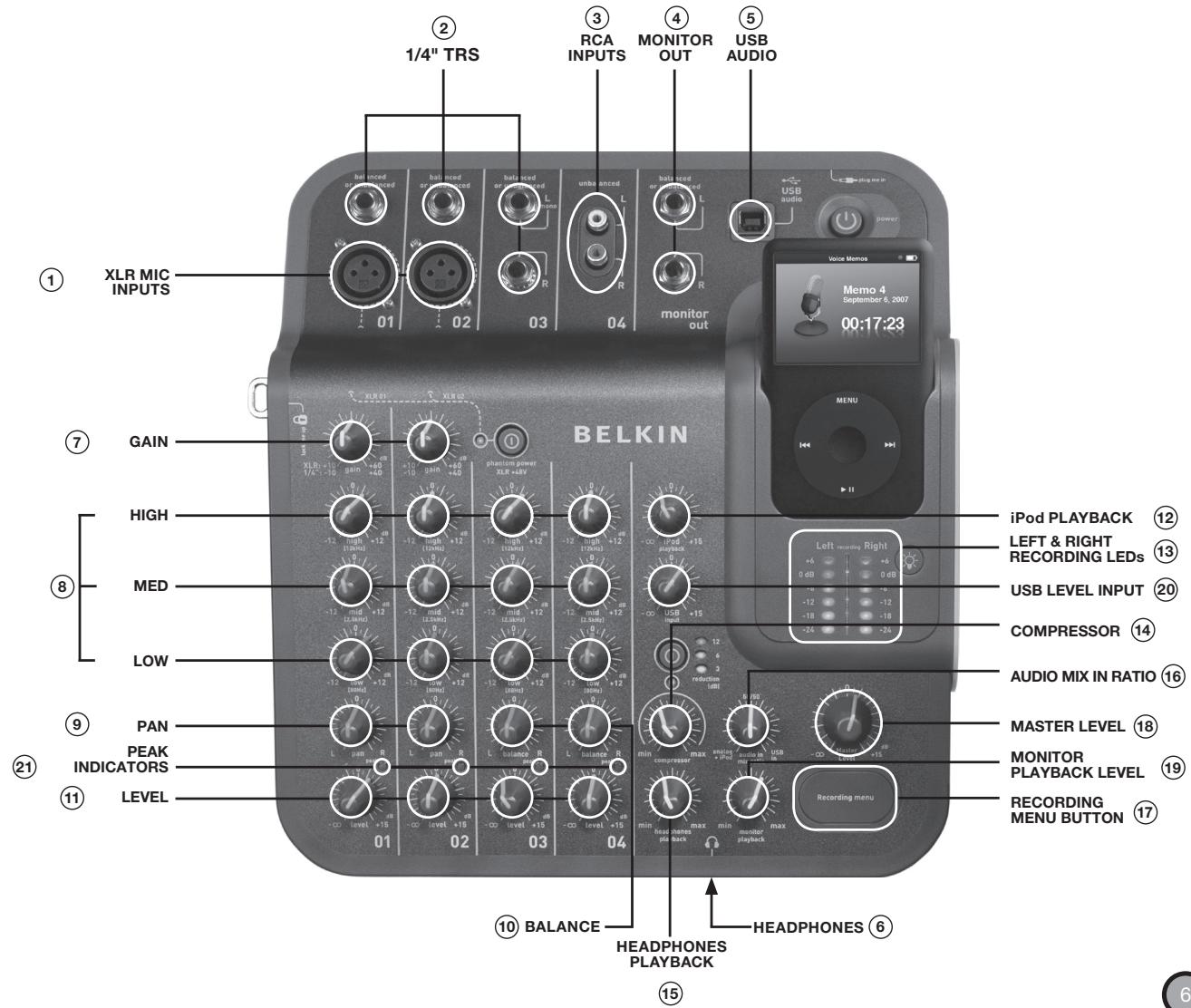
Take a few minutes to learn how to use the inputs and controls on your TuneStudio.
You can use the inputs and outputs to connect instruments, mics, computers, speakers, and headphones to your TuneStudio.
| Input/Output | Description |
| ① XLR Mic Inputs | Inputs 1 and 2 provide XLR cable microphone inputs with optional phantom power for condenser mics. A condenser mic usually requires phantom power unless it has its own power source, such as a battery. Dynamic and ribbon mics don't usually require phantom power. Note: The phantom power button turns on phantom power for inputs 1 and 2. Always connect your microphones before turning on phantom power. Microphones are very sensitive, and a sudden power surge can damage a microphone. It's also a good idea to set the level control to -∞ before you turn on phantom power. |
| ② 1/4" TRS Inputs | Inputs 1-3 provide 1/4" TRS inputs for connecting guitars, bass guitars, synthesizers, drum machines, and other instruments. Channel 3 provides two TRS inputs. If you're connecting a mono input to Channel 3, connect it to the "Left/Mono" input. |
| ③ RCA Inputs | Input 4's RCA inputs can be used to connect electronic equipment such as a CD player or another iPod. |
| ④ Monitor Out | The monitor out connection can be used to connect studio monitor speakers. Studio monitors should have built-in amplifiers or be connected to an amplifier. You can control the studio monitors' volume with the monitor playback control. |
| ⑤ USB Audio | The USB connection can be used to connect your TuneStudio to a computer. You can control the computer's volume with the USB input control. |
| ⑥ Headphones | The headphones connection can be used to connect headphones. You can use the 1/8" (3.5mm) to 1/4" (7mm) headphone adapter to connect different types of headphones. You can control the headphone's volume with the headphones playback control. |
You can use your TuneStudio's controls to fine-tune and monitor your recordings.
| Control | Description |
| ⑦ Gain(Channels 1 and 2) | The gain control determines how much of the source signal is sent to the rest of the mix. If the gain is too high, the sound will be distorted. If the gain is too low, background hiss may be more noticeable.You can add up to 60 dB of gain to the XLR inputs and 40 dB of gain to the 1/4" TRS inputs. |
| ⑧ High, Mid, Low EQs(Channels 1-4) | The high, mid, and low equalizers ("EQs") can be used to increase ("boost") or decrease ("cut") the volume by up to 12 dB. The EQ settings can have a dramatic effect, so use them carefully.High EQ (12kHz)The high EQ can be increased to add crispness to cymbals, vocals, and string instruments or decreased to reduce microphone hiss.Mid EQ (2.5kHz)The mid EQ can be increased to make guitars, bass guitars, and pianos stronger or decreased to soften vocals.Low EQ (80Hz)The low EQ can be increased to add warmth to vocals or horns or extra punch to synthesizers, guitars, and drums. Decreasing the low EQ can reduce hum and add clarity to bass instruments.See "Equalizing (EQ) Tips" on page 19 for more information. |
| ⑨ Pan(Channels 1 and 2) | The pan control can be used to move a mono input to the left or right in the stereo spectrum. |
| ⑩ Balance(Channels 3 and 4) | The balance control can be used to control which part of a stereo input signal (left or right) is louder than the other. If a mono source is connected to input 3, then the balance control works like the pan control. |
| ⑪ Level(Channels 1-4) | The level control specifies how much of the source signal is sent to the mix. In the leftmost position, the volume is muted. In the rightmost position, the volume is increased by 15 dB. |
| ⑫ iPod Playback | The iPod playback control sets the volume when listening to your iPod. In the leftmost position, the volume is muted. In the rightmost position, the volume is increased by 15 dB. |
| ⑬ USB Input Level | The USB level control specifies how much of the signal is sent to the mix. In the leftmost position, the signal is not sent to the mix. In the rightmost position, the signal is increased by 15 dB. |
| 14 Compressor | The compressor can be used to enhance your recordings and keep the volume levels within the recording limits of the iPod. With the compressor, you can make softer sounds louder without making louder sounds too loud. It is especially useful when recording vocals and instruments together. The three LEDs to the right of the compressor button indicate how many decibels (dBs) of compression are being applied. |
| Headphones Playback | The headphones playback control can be used to set the volume for the headphones. Note: The headphones input is on the side of your TuneStudio under the headphones playback control. |
| Audio In Mix Ratio | The audio in mix ratio specifies how signals from input sources 1–4 and the USB input are mixed together. For example, turning the control to the left will increase the volume of input 1–4 sources and decrease the volume of the USB source. Turning the control completely to the left or right will mute the other source. |
| Monitor Playback Level | The monitor playback control can be used to set the volume of the studio monitor speakers. |
| Master Level | The master level control sets the recording volume level to the iPod. In the leftmost position, the volume is muted. In the rightmost position, the volume is increased by 15 dB. |
| Recording Menu Button | The Recording Menu button can be used to open the Recording menu on the iPod 5th generation (video) and iPod nano 2nd generation only. Note that this button does not work with the iPod classic or iPod nano 3rd generation (video). Note: Please see page 23 for more details. |
| Left and Right Recording LEDs | The recording LED lights tell you if the volume is too low or too high. You can adjust the volume using each input's level control or the full mix using the master level control. |
| Peak Indicators | Each input channel has a peak indicator near its level control. The peak indicator lights up when the audio signal level is too high and may be causing distortion. If a peak indicator lights up, you should adjust your settings until the peak indicator stays off. These are the most likely solutions: •For inputs 1 and 2, try turning down the gain control or moving your microphone further away from the source. •If you have any of the EQ controls turned up high, turn them down a little. •Turn down the volume of the audio source. |
Setting the recording level will help you create clear, distortion-free recordings.
You should set the recording level for each channel that you're using.
To set the recording level:
1 If you're using input 1 or 2, set the "Gain" control completely to the left.
2 Set the "Low", "Mid", and "High" EQ controls to 0.
3 Set the "Pan" control to 0.
4 Set the "Level" control to -
5 Connect the microphone or instrument cable to the channel's input.
6 Set the "iPod Playback" control to 0.
7 Set the "Master Level" control to 0.
8 Play the instrument or electronic device at a normal level and slowly increase the channel's gain until the left and right recording level LEDs are continuously red (0 dB).
9 Slowly reduce the channel's gain until the red 0 dB LEDs no longer light up when you play the instrument or device.
10 Adjust the low, mid, and/or high EQs, then check the red 0 dB LEDs to verify they don't light up.
11 If any of the red recording level LEDs lights up while you're recording, your recording could be distorted. Keep an eye on the LEDs and adjust your levels as necessary.
12 If it's difficult to control the level of your audio source, especially if you're working with microphones or multiple audio sources, experiment with the compressor to keep the levels in check. The compressor looks for sudden increases in volume and reduces the audio levels very quickly to keep the signals from exceeding the recording level limits.
Read on to learn how to select and place a mic when recording.
Using a well-placed microphone will drastically improve your sound quality. You should experiment with microphone placement to find the best location.
Types of Microphones
There are two types of microphones: condenser and dynamic.
Condenser Microphones
Condenser (or "capacitor") microphones are usually used for live recordings. Unless they have their own power supply, such as a battery, condenser mics use the phantom power from your TuneStudio to power their amplifiers and impedance converters. There are many types of condenser mics, including headworn, lavalier, probe, shotgun, and side-address.
Condenser mics are very sensitive, so they work well with distant or soft sources. They are often used to record acoustic instruments and vocals.
Dynamic Microphones
Dynamic (or "moving-coil") microphones are usually less expensive and less sensitive than condenser microphones. Because they don't have amplifiers, dynamic mics don't need phantom power. Phantom power should not harm a dynamic mic, but you should turn off phantom power before connecting a dynamic mic.
Older dynamic mics have low sensitivities and require a high gain setting. Ribbon mics (a type of dynamic microphone) normally have very low sensitivity and usually require a very high gain setting. They are often used to record guitars and drums.
Recording with Multiple Microphones
Your TuneStudio can record up to four sources at a time, and input channels 1 and 2 can provide phantom power for two mics. If you are recording with multiple mics, you should follow the 3:1 rule.
3:1 Microphone Placement Rule
When you record with multiple mics, sounds arrive at each mic at different times. Sounds farther from the mic will have a slight delay. When you combine the close and distant sounds, some frequencies will cancel each other out. The result is a "hollow" or filtered sound.
To avoid this problem, the distance between your mics should be three times the distance between the mics and their source. For example, if your mics are one foot from the source, they should be placed at least three feet apart.
The diagram below shows a typical 2-mic setup for recording a podcast. You can connect an iPod or a computer to include background music.

Tips for Recording a Podcast
You will become much more comfortable and adept at recording podcasts after you have done it a few times. Here are some tips to help you get started:
- Test the recording level before recording. The left and right recording level LEDs should not be constantly red (0 dB). If the 0 dB LED is constantly lit, the "peaks" of the recording may be clipped and the sound quality will usually be poor.
- Use a well-placed, high-quality mic. Lavalier mics often work well for podcasts because they're small and can be clipped to your clothing.
If you are not using a lavalier mic, be careful not to move too close to or far away from the mic. - Position your mic about six inches from your mouth (or at an angle) so that it doesn't capture your breathing. Remember, you can connect headphones to your TuneStudio to test different mic positions and distances.
- Speak in your normal voice at a conversational level. Don't be too self-conscious about your voice—most people don't like the sound of their voice when they first hear it in a recording. Just be sure to speak clearly.
- If you are recording an interview with one mic, try using a "figure eight" type mic and have your interviewee sit directly across from you. A figure eight mic is two sided, so it can capture sounds directly in front and directly behind.
- Use the level controls to fade-in the beginning of your podcast and fade-out the end.
- Include background music during the podcast, with several seconds of music at the beginning and end of your podcast. Make sure you have permission to use the music.
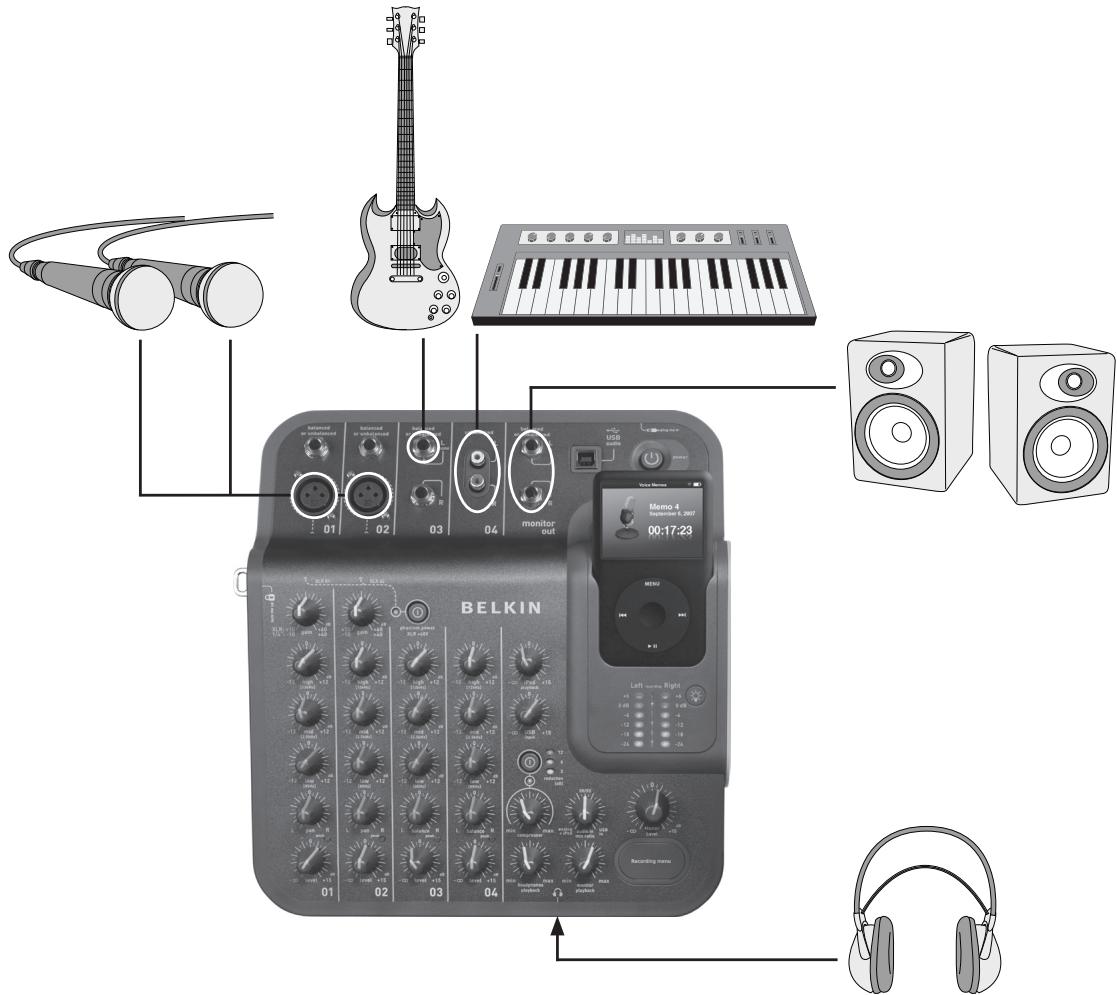
The diagram below shows a typical setup for recording live music. You can connect different instruments as needed. For example, you can connect a drum machine instead of a second mic.
Tips for Recording Acoustic Instruments
Acoustic instruments can be difficult to record. Here are a few tips to improve your acoustic guitar recordings:
- Record in a highly acoustic room, such as a room with a wooden or tile floor.
- Use a condenser microphone ("mic"). It can capture softer instruments better than a dynamic mic.
- Try positioning the mic about 24 inches from the instrument.
- Use multiple mics, and experiment with different angles and placements. For example, position two mics at 90-degree angles and use the pan controls to move one mic to the left side of the mix and the other mic to the right. This approach can create a very engaging stereo effect.
- For acoustic guitars, try placing one mic 1-6 inches from the sound hole. You will probably need to reduce the low EQ control with this approach.
Tips for Recording Electrical Instruments
- Guitar - For a live sound, try recording with two mics. Point one mic directly into the guitar's monitor speaker and the other mic about five or six feet from the speaker.
- Bass Guitar - If possible, connect the bass guitar to a direct injection ("DI") box and connect the DI box to your TuneStudio. A DI box will eliminate hum in your recordings.
- Keyboards - Record directly to your TuneStudio for clarity and with a mic (set to lower volume) for a live sound.
The diagram below shows a typical setup for recording a choir. You can connect an iPod or CD player to include background music.
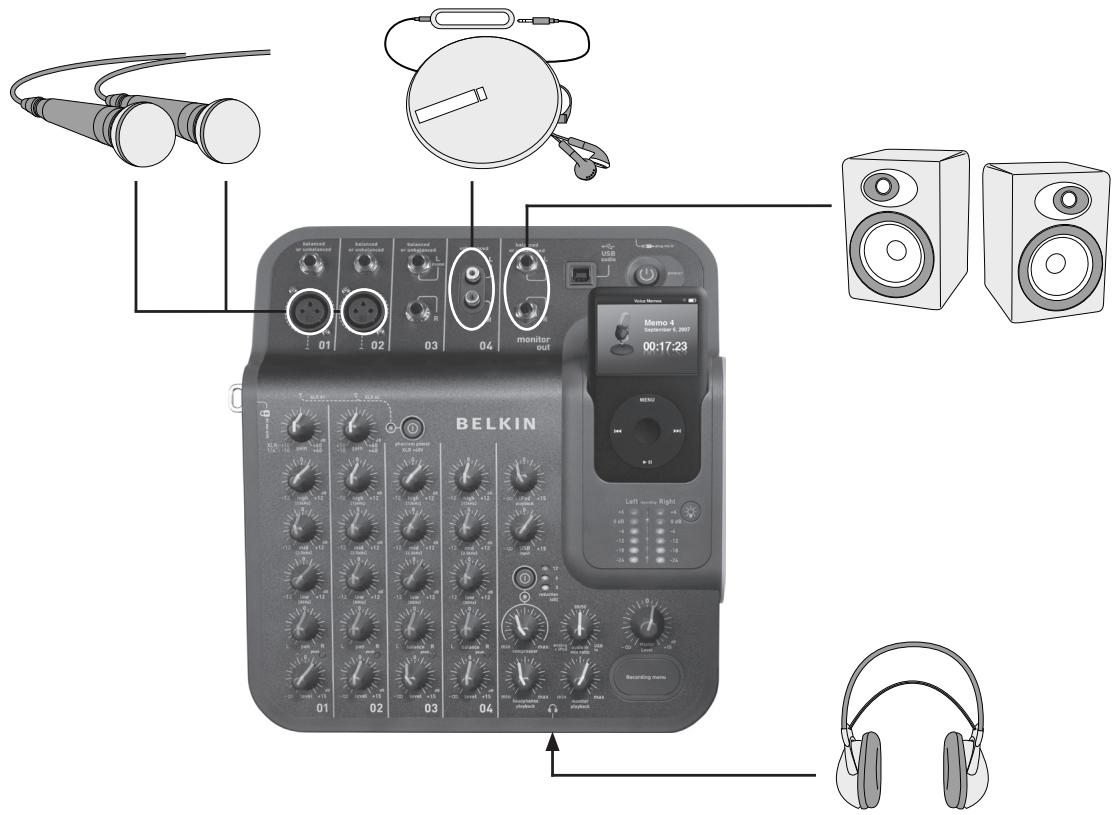
Tips for Recording a Choir
- Use a condenser mic for recording vocalists. They usually work better than dynamic mics for vocals.
- Use multiple mics. If possible, place them above the choir and aimed down.
- Try positioning two mics in the middle and aim them toward the vocalists in the back corners. Place the mics least three times the distance from each other as from the vocalists.
- Try using an omnidirectional mic. It will capture both the choir and the sound resonating in the room.
The diagram below shows a typical setup for recording to a computer.
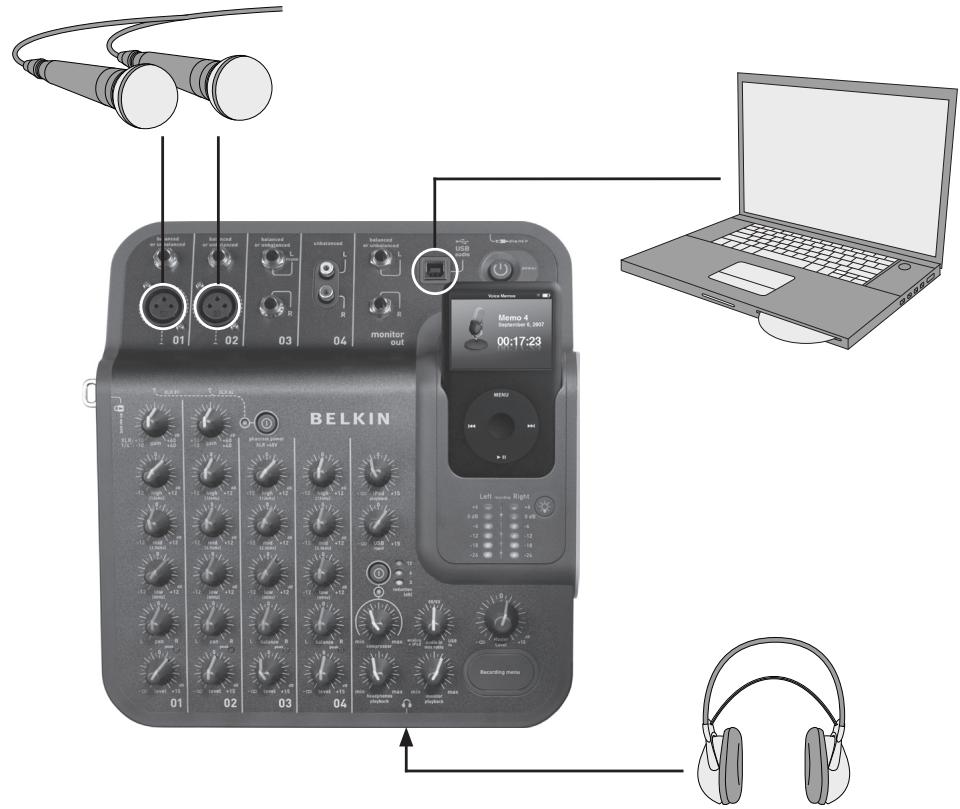
Tips for Recording to or from a Computer
You'll need to select your TuneStudio as your input and output audio device to record audio to or from a Mac computer or Windows PC.
To record to or from a Mac computer:
1 Connect your TuneStudio to your Mac computer's USB port.
2 Select "System Preferences" from the Apple menu.
3 Select the "Sound" preference pane.
4 Click the "Output" tab.
5 Select "USB Audio Codec" as your default input and output device.
To record to or from a Windows PC:
1 Connect your TuneStudio to your Windows USB port.
2 Select "Settings > Control Panel" from the Start menu.
3 Double-click "Sounds and Audio Devices".
4 Click the "Audio" tab.
5 Select your TuneStudio as the default "Sound playback" and "Sound recording" device.
6 For best audio quality, select the "Volume" tab and set the "Device volume" to "High."
The following EQ tips will help you create high-quality recordings.
The high, mid, and low EQs can be used to increase or decrease the volume of your source inputs by up to 12 dB at the following levels:
Low: 80Hz
Mid: 2.5kHz
High: 12kHz
The following table provides tips for recording different instruments and vocals. These tips are recommended starting points--you should experiment to find the best settings for your instrument and environment. If you need to make large adjustments, try to adjust your microphones rather than the EQ settings.
Note: "Boost" means to increase the setting, and "cut" means to decrease the setting.
| Source | Low (80Hz) | Mid (2.5kHz) | High (12kHz) |
| Conversations | Slight cut | ||
| Vocals | Slight cut | ||
| Cymbals | Cut | Slight boost | |
| Snare drums | Slight cut | Slight cut | Slight boost |
| Kick/bass drums | Slight boost | Slight cut | |
| Toms | Cut | ||
| Bass guitars | Cut | Boost | |
| Guitars | Cut | ||
| Pianos and keyboards | Cut |
The following tips will help you produce the best mix possible.
- Listen to commercial recordings through your TuneStudio using a studio monitor or headphones to develop a sound reference.
- Don't pan kick drums or bass instruments to the left or right. These "high energy" sounds should be shared equally between the speakers for best results.
- Don't vary the level of drums or bass guitars. These instruments provide a foundation for other instruments.
- If you record multiple inputs, make your final EQ adjustments to the full mix. A single input will often sound different when heard by itself.
- Avoid making large EQ adjustments. Your recording will sound more natural if you adjust the mics rather than the EQ settings.
- Experiment with the compressor setting. Set the compressor below 30 percent for subtle compression and to smooth out some of the audio peaks. Try a higher compression setting to achieve higher "loudness" or for an interesting audio effect.
- Keep the studio monitor or headphone volume low or, at most, at a normal listening level. A high volume can cause hearing damage, and you should always mix at the level you think the recording will be played. If needed, you can check the mix at a higher volume for short periods.
- Check your mix on headphones and studio monitors. "Studio" headphones that completely isolate your ears can help you find small distortions and clicks that you may not hear through speakers. Studio monitors can help you fine-tune bass sounds.
- Listen to your finished mix the day after you've finished it. Your perception is likely to change after resting your ears overnight. Also, check the master recording on different sound systems to ensure it sounds OK.
Your recordings are saved as voice memos on your iPod. Each recording is an uncompressed WAV file, and the file name is the recording's date and time.
To listen to a recording:
- Select "Extras > Voice Memos" on the iPod.
- Select the recording and press "Play".
Recordings that have been imported into iTunes (see below) can be found in the Voice Memos playlist on your iPod. Select "Music > Playlists > Voice Memos".
Copying a Recording to Your Computer
If your iPod is set to automatically update (or "sync") songs and playlists, your recordings will be copied to your computer when you connect your iPod. If iTunes is not set to sync songs and playlists with your iPod, iTunes will ask you if you'd like to copy your new voice memos when you connect your iPod to your computer.
Keep in mind that your recent recordings will be moved from your Voice Memos menu on your iPod to the Voice Memos playlist once you've imported them into iTunes. To open the Voice Memos playlist, select "Music > Playlists > Voice Memos".
If you prefer the drag-and-drop approach, which may be more useful if you plan to work with your recordings using other audio software, you must first choose to "Manually manage music and videos" for your iPod within iTunes. This will also automatically "Enable disk use" for your iPod, which is what you want. Then, select "No" when iTunes asks if you'd like it to import your recent voice memos each time you dock your iPod. Instead, you can manage your recordings through Windows Explorer (PC) or Finder (Mac). Your recordings are regular WAV files, so you can treat them as you would any other WAV file.
On a Windows PC, your iPod will appear in the list of drives when you click "My Computer" on your desktop. On a Mac, your iPod should appear in the Finder or on your desktop. Your recordings will be in the "Recordings" folder. Each recording's file name includes the date and time of the recording.
As with any sound recording or listening device, you should be careful to protect your hearing when using your TuneStudio.
Following these sound-level recommendations can minimize your risk of hearing damage. Remember, the longer you listen, the lower the volume should be.
| Hours per day | Max sound level (dB) | Sample sound |
| 8 | 90 | |
| 4 | 95 | Typical portable stereo at half volume |
| 2 | 100 | |
| 1 | 105 | Typical portable stereo at maximum volume |
| 0.5 | 110 | Rock concert |
| <0.25 | 115 |
This information is based on guidelines provided by the United States Occupational Safety & Health Administration (OSHA) and the National Institute on Deafness and Other Communication Disorders.
Most problems with your TuneStudio can be solved quickly by following the advice in this chapter.
If you continue to have trouble, contact Belkin Customer Service at 800-223-5546 ext. 2263 or on the web at http://www.belkin.com/support.
If the Recording Menu button doesn't work:
- This button works with iPod 5th generation (video) and iPod nano 2nd generation. It does not work with the iPod classic or iPod nano 3rd generation (video).
- If you are using the iPod classic or iPod nano 3rd generation (video), simply navigate to the "Voice Memo" menu on the iPod itself.
If your TuneStudio won't turn on:
- Make sure you're using the supplied 12V 1.25A power adapter.
- Try using another power outlet.
If you don't hear anything in the studio monitors or headphones:
- Make sure your TuneStudio is plugged in and turned on.
- Make sure the cables are securely connected.
- Verify your source is playing.
- Turn up the level control(s).
If these suggestions don't help, you might have a bad cable. Check all of your cables and try replacing them with known good ones.
If the microphone volume is too low:
- Make sure the cables are securely connected.
If you are using a condenser mic, try turning on phantom power. - If the microphone is connected to channel 1 or 2, turn up the gain control.
If an instrument's volume is too low:
- Make sure the cables are securely connected.
- Turn up the instrument's volume. If the volume is still too low, check the instrument by connecting your headphones to the instrument.
- Adjust the channel's level control.
If the sound is distorted:
If the left or right +6 dB recording level LED lights up:
- Turn down the volume on your instrument.
- Turn down the channel's level control.
- Turn down the master recording level control.
If you hear a "hum" sound in the recording:
- If you're using a condenser microphone, try turning on phantom power and increase the level control.
- If you're recording an instrument, turn up the instrument's volume control.
- Try connecting your instrument, TuneStudio, and computer to a grounded power strip.
If your recordings are only in the left channel:
- Make sure your iPod is configured to record in "High Quality" mode. On your iPod, select "Extras > Voice Memos" and set Quality to "High". Your TuneStudio will not work correctly with Quality set to "Low".
- Check your cable connections.
- Make sure that your pan and balance controls are not set all the way to the left.
If your computer doesn't see your TuneStudio:
- Make sure the USB cable is securely connected.
- Unplug the USB cable and turn off your TuneStudio. Then, turn your TuneStudio on and reconnect the USB cable. If this doesn't work, leave your TuneStudio on and restart your computer.
- Make sure the TuneStudio is selected as an audio output device. See page 18.
General Channel Performance (Channels 1-4, iPod Playback)
| Specification | Value | Notes |
| THD | 0.004% | |
| THD+N | 0.008% | |
| Frequency Response | ±0.5 dB, 20Hz-20kHz | |
| Signal to Noise Ratio | 90 dB, 92 dB (A-weighted) | Signal at 0 dB (0 dBV) |
| Level Fader Cutoff | 80 dB | Difference in output level with channel level control set to -inf then +15 dB |
Specific I/O Performance and Characteristics
CH1 and CH2 XLR Microphone Inputs
| Specification | Value | Notes |
| EIN (Equivalent Input Noise) | 121 dB, -123 dB (A-weighted) | Mic gain +60 dB, 150-Ohm source impedance |
| Max Input Level | 600mVrms (-2.6 dBu) | Mic gain at +10 dB |
| Input Impedance | 4kΩ balanced |
CH1 and CH2 1/4" TRS Inputs
| Specification | Value | Notes |
| Max Input Level, Balanced | 4.4Vrms (+15.1 dBu) | Mic gain at -10 dB |
| Max Input Level, Unbalanced | 8.8Vrms (+21.1 dBu) | Mic gain at -10 dB |
| Input Impedance | 20kΩ unbalanced, 28kΩ balanced |
CH3 1/4" TSR Inputs
| Specification | Value | Notes |
| Max Input Level, Balanced | 2.1Vrms (+8.6 dBu) | |
| Max Input Level, Unbalanced | 4.2Vrms (+14.6 dBu) | |
| Input Impedance | 20kΩ unbalanced, 40kΩ balanced |
CH4 RCA Inputs
| Specification | Value | Notes |
| Max Input Level | 5.4Vrms (+16.9 dBu) | |
| Input Impedance | 22kΩ |
USB Output (from TuneStudio to Computer)
| Specification | Value | Notes |
| SNR, 44.1kHz, 16-bit | 81 dB, 84 dB (A-weighed) | |
| SNR, 48kHz, 16-bit | 84 dB, 87 dB (A-weighted) | |
| Stereo Separation | >80 dB | |
| THD+N | 0.03% | |
| Frequency Response | ±1 dB, 20Hz-20kHz |
USB Input (from Computer to TuneStudio)
| Specification | Value | Notes |
| Signal to Noise Ratio | 83 dB | USB mix control set to 100% USB |
| Stereo Separation | >80 dB | |
| THD+N | 0.007% | |
| Frequency Response | ±1 dB, 20Hz-20kHz | |
| Level Fader Cutoff | 80 dB | Difference in output level with channel level control set to -inf then +15 dB |
Want to learn more about recording audio, mixing, or creating podcasts?
The following table provides some recommended websites and books.
References to Third-Party Information: Belkin provides references to third-party information for your convenience. The inclusion of any such references does not imply Belkin's endorsement of the info.
The referenced media are not under Belkin's control and Belkin is not responsible for the content of any such publication or any link contained in such site.
| To learn about... | Check out... |
| TuneStudio | www.belkin.com/tunestudio |
| Recording Audio | “Audio Recording Tips” - www.pcmus.com/AudioTips.htm “Audio Mixing Tutorial” - www.garritan.com/tutorial/AudioMixing.htm Sound Advice on Recording and Mixing Vocals by Bill Gibson 101 Recording Tips: Stuff All the Pros Know and Use by Adam St. Jam |
| Mixing | The Mixing Engineer's Handbook by Bobby Owsinski Mixing, Recording and Producing Techniques of the Pros by Rick Clark |
| Podcasting | “Make Your First Podcast” - www.podcastnews.com/articles/How-to-Podcast.html “Create Your Own Podcast” - reviews.cnet.com/4520-11293_7-6246557-1.html Podcasting Tutorials - www.podcast411.com Tricks of the Podcasting Masters by Rob Walch Promoting Your Podcast: The Ultimate Guide to Building an Audience of Raving Fans by Jason Van Orden |
The following terms are often used when recording and mixing audio.
Balance: The relative volume levels of the left and right channels of a stereo signal.
Boost: An increase in volume, especially at higher frequencies.
Clipping: Severe distortion that occurs when the peak signal's voltage is limited by the power supply's voltage.
Cut: A reduction in volume, especially at lower frequencies.
dB (decibel): A measurement for the "loudness" of a sound.
Distortion: An undesired sound caused by a difference between the input and output of an audio signal.
Feedback: The "howling" sound caused when a microphone is positioned too close to a speaker.
Gain: The amount of amplification in a signal.
Monitor: A speaker that is used to listen to and evaluate a recording. Also called a "studio monitor."
Pan ("panorama"): Pan controls are used to set the sound levels for the left and right outputs. They are sometimes called "balance" controls.
RCA ("Radio Corporation of America"): RCA cables are used to transmit analog audio and composite video signals. Stereo RCA cables have two connectors: red (right) and white or black (left). A yellow connector on an RCA cable is used for composite video. RCA cables are named after the Radio Corporation of America (RCA). RCA invented these cables in the early 1940s to connect turntables to amplifiers.
TRS ("Tip-Ring-Sleeve"): TRS cables are usually used to connect mono, not stereo, sources, or headphones.
USB ("Universal Serial Bus"): USB cables are used to connect devices to computers. They can be connected without turning the computer off.
XLR: XLR cables are usually used to connect a microphone. The name "XLR" is from the original name of the cable, the Cannon X series. Later versions added a latch ("L") and then a rubber compound ("R") around the contacts.
This product complies to the WEEE directive.
For recycling information please follow the following link: www.belkin.com/environmental
Free Tech Support*
You can find additional support information on our website www.belkin.com through the tech-support area. If you want to contact technical support by phone, please call the number you need from the list below*.
*Local rates apply
Country Number
AUSTRIA 08-20200766
BELGIUM 07 07 00 073
CZECH REPUBLIC 23 900 04 06
DENMARK 70122403
FINLAND 00800-22355460
FRANCE 08-25540026
GERMANY 0180-5005709
GREECE 00800-44142390
HUNGARY (06-1)-7774906
ICELAND 800 8534
IRELAND 0818555006
ITALY 02-69430251
LUXEMBOURG 3420808560
NETHERLANDS 0900 - 040 07 90 €0.10 per minute
NORWAY 81500287
POLAND 00800-4411737
PORTUGAL 707200676
RUSSIA 4955809541
SOUTH AFRICA 0800-991521
SPAIN 902-024366
SWEDEN 07-71400453
SWITZERLAND 08-48000219
UNITED KINGDOM 0845 - 607 77 87
OTHER COUNTRIES +44 - 1933 35 20 00
Internet adress
http://www.belkin.com/uk
http://www.belkin.com/nl
http://www.belkin.com/uk
http://www.belkin.com/uk
http://www.belkin.com/uk
http://www.belkin.com/it/support/tech
http://www.belkin.com/uk
http://www.belkin.com/nl
http://www.belkin.com/uk
http://www.belkin.com/uk
http://www.belkin.com/uk
http://www.belkin.com/uk
http://www.belkin.com/uk
http://www.belkin.com/es/support/tech
http://www.belkin.com/se/support/tech
http://www.belkin.com/uk
http://www.belkin.com/uk
What this warranty covers. Belkin International, Inc. ("Belkin") warrants to the original purchaser of this Belkin product that the product shall be free of defects in design, assembly, material, or workmanship.
What the period of coverage is. Belkin warrants the Belkin product for three years.
What will we do to correct problems? Product Warranty. Belkin will repair or replace, at its option, any defective product free of charge (except for shipping charges for the product).
What is not covered by this warranty? All above warranties are null and void if the Belkin product is not provided to Belkin for inspection upon Belkin's request at the sole expense of the purchaser, or if Belkin determines that the Belkin product has been improperly installed, altered in any way, or tampered with. The Belkin Product Warranty does not protect against acts of God such as flood, lightning, earthquake, war, vandalism, theft, normal-use wear and tear, erosion, depletion, obsolescence, abuse, damage due to low voltage disturbances (i.e. brownouts or sags), non-authorized program, or system equipment modification or alteration.
How to get service. To get service for your Belkin product you must take the following steps:
- Contact Belkin Ltd. Express Business Park, Shipton Way, Rushden, NN10 6GL, United Kingdom, Attn: Customer Service, or call (800)-223-5546, within 15 days of the Occurrence. Be prepared to provide the following information:
a. The part number of the Belkin product.
b. Where you purchased the product.
c. When you purchased the product.
d. Copy of original receipt.
- Your Belkin Customer Service Representative will then instruct you on how to forward your receipt and Belkin product and how to proceed with your claim.
Belkin reserves the right to review the damaged Belkin product. All costs of shipping the Belkin product to Belkin for inspection shall be borne solely by the purchaser. If Belkin determines, in its sole discretion, that it is impractical to ship the damaged equipment to Belkin, Belkin may designate, in its sole discretion, an equipment repair facility to inspect and estimate the cost to repair such equipment. The cost, if any, of shipping the equipment to and from such repair facility and of such estimate shall be borne solely by the purchaser. Damaged equipment must remain available for inspection until the claim is finalized. Whenever claims are settled, Belkin reserves the right to be subrogated under any existing insurance policies the purchaser may have.
How country law relates to the warranty. THIS WARRANTY CONTAINS THE SOLE WARRANTY OF BELKIN. THERE ARE NO OTHER WARRANTYES, EXPRESSED OR, EXCEPT AS REQUIRED BY LAW, IMPLIED, INCLUDING THE IMPLIED WARRANTY OR CONDITION OF QUALITY, MERCHANTABILITY OR FITNESS FOR A PARTICULAR PURPOSE, AND SUCH IMPLIED WARRANTYES, IF ANY, ARE LIMITED IN DURATION TO THE TERM OF THIS WARRANTY.
Some countries do not allow limitations on how long an implied warranty lasts, so the above limitations may not apply to you.
IN NO EVENT SHALL BELKIN BE LIABLE FOR INCIDENTAL, SPECIAL, DIRECT, INDIRECT, CONSEQUENTIAL OR MULTIPLE DAMAGES SUCH AS, BUT NOT LIMITED TO, LOST BUSINESS OR PROFITS ARISING OUT OF THE SALE OR USE OF ANY BELKIN PRODUCT, EVEN IF ADVISED OF THE POSSIBILITY OF SUCH DAMAGES.
This warranty gives you specific legal rights, and you may also have other rights, which may vary from country to country. Some countries do not allow the exclusion or limitation of incidental, consequential, or other damages, so the above limitations may not apply to you.
NOTES

FRANÇAIS
BIENVENUE 1
http://www.belkin.com/it/support/tech
http://www.belkin.com/uk
http://www.belkin.com/nl
http://www.belkin.com/uk
http://www.belkin.com/uk
http://www.belkin.com/uk
http://www.belkin.com/uk
http://www.belkin.com/uk
http://www.belkin.com/es/support/tech
http://www.belkin.com/se/support/tech
http://www.belkin.com/uk
http://www.belkin.com/uk

DEUTsCH

USB (Universal Serial Bus" 28
XLR 28
INFORMATIONEN 29
HINWEISE 32
http://www.belkin.com/it/support/tech
http://www.belkin.com/uk
http://www.belkin.com/nl
http://www.belkin.com/uk
http://www.belkin.com/uk
http://www.belkin.com/uk
http://www.belkin.com/uk
http://www.belkin.com/uk
http://www.belkin.com/es/support/tech
http://www.belkin.com/se/support/tech
http://www.belkin.com/uk
http://www.belkin.com/uk

NEDERLANDS

RCA ("Radio Corporation of America") 28
TRS ("Tip-Ring-Sleeve") 28
USB ("Universal Serial Bus") 28
XLR 28
INFORMATIE 29
NOTITIES 32
Mac OS X versie 10.2.8 'Jaguar' of later
| Meer informatatie over... | Raadpleeg... |
| TuneStudio | www.belkin.com/tunestudio |
| Audio opnemen | 'Audio Recording Tips' - www.pcmus.com/AudioTips.htm 'Audio Mixing Tutorial' - www.garritan.com/tutorial/AudioMixing.htm Sound Advice on Recording and Mixing Vocals door Bill Gibson 101 Recording Tips: Stuff All the Pros Know and Use door Adam St. Jam |
| Mixen | The Mixing Engineer's Handbook door Bobby Owsinski Mixing, Recording and Producing Techniques of the Pros door Rick Clark |
| Podcasts | 'Make Your First Podcast' - www.podcastingnews.com/articles/How-to-Podcast.html 'Create Your Own Podcast' - reviews.cnet.com/4520-11293_7-6246557-1.html Stapsgewijze oefingen voor podcasts - www.podcast411.com Tricks of the Podcasting Masters door Rob Walch Podcasts promoten: The Ultimate Guide to Building an Audience of Raving Fans door Jason Van Orden |
http://www.belkin.com/it/support/tech
http://www.belkin.com/uk
http://www.belkin.com/nl
http://www.belkin.com/uk
http://www.belkin.com/uk
http://www.belkin.com/uk
http://www.belkin.com/uk
http://www.belkin.com/uk
http://www.belkin.com/es/support/tech
http://www.belkin.com/se/support/tech
http://www.belkin.com/uk
http://www.belkin.com/uk

ESPANOL
BIENVENIDO 1
Characteristicasprincipales 1
BASICOS TUNESTUDIO 2
| Para saber más acerca de... | Eche un vistazo... |
| TuneStudio | www.belkin.com/tunestudio |
| Grabación de audio | "Audio Recording Tips" - www.pcmus.com/AudioTips.htm "Audio Mixing Tutorial" - www.garritan.com/tutorial/AudioMixing.htm "Sound Advice on Recording and Mixing Vocals" por Bill Gibson "101 Recording Tips: Stuff All the Pros Know and Use" por Adam St. Jam |
| Mezclas | "The Mixing Engineer's Handbook" por Bobby Owsinski "Mixing, Recording and Producing Techniques of the Pros" por Rick Clark |
| Podcasting | "Make Your First Podcast" - www.podcastnews.com/articles/How-to-Podcast.html "Create Your Own Podcast" - reviews.cnet.com/4520-11293_7-6246557-1.html Podcasting Tutorials - www.podcast411.com "Tricks of the Podcasting Masters" por Rob Walch "Promoting Your Podcast: The Ultimate Guide to Building an Audience of Raving Fans" por Jason Van Orden |
RCA ("Radio Corporation of America") 28
| Per maggiori informazioni... | Vedere... |
| TuneStudio | www.belkin.com/tunestudio |
| Registrazione audio | “Audio Recording Tips” - www.pcmus.com/AudioTips.htm “Audio Mixing Tutorial” - www.garritan.com/tutorial/AudioMixing.htm Sound Advice on Recording and Mixing Vocals di Bill Gibson 101 Recording Tips: Stuff All the Pros Know and Use di Adam St. Jam |
| Mixaggio | The Mixing Engineer's Handbook di Bobby Owsinski Mixing, Recording and Producing Techniques of the Pros di Rick Clark |
| Podcast | “Make Your First Podcast” - www.podcastnews.com/articles/How-to-Podcast.html “Create Your Own Podcast” - reviews.cnet.com/4520-11293_7-6246557-1.html Podcasting Tutorials - www.podcast411.com Tricks of the Podcasting Masters di Rob Walch Promoting Your Podcast: The Ultimate Guide to Building an Audienceof Raving Fans di Jason Van Orden |
http://www.belkin.com/it/support/tech
http://www.belkin.com/uk
http://www.belkin.com/nl
http://www.belkin.com/uk
http://www.belkin.com/uk
http://www.belkin.com/uk
http://www.belkin.com/uk
http://www.belkin.com/uk
http://www.belkin.com/es/support/tech
http://www.belkin.com/se/support/tech
http://www.belkin.com/uk
http://www.belkin.com/uk

- ENGLISH
- PROTECTING YOUR HEARING 22
- TROUBLESHOOTING 23
- TUNESTUDIO SPECIFICATIONS 25
- LEARNING MORE 27
- GLOSSARY 28
- INFORMATION 29
- NOTES 32
- Key Features
- What You Can Do with Your TuneStudio
- What You Can Connect to Your TuneStudio
- Cables You May Need
- iPod
- Windows
- Macintosh
- To set up your TuneStudio:
- To set the recording level:
- Types of Microphones
- Condenser Microphones
- Dynamic Microphones
- Recording with Multiple Microphones
- 3:1 Microphone Placement Rule
- Tips for Recording a Podcast
- Tips for Recording Acoustic Instruments
- Tips for Recording Electrical Instruments
- Tips for Recording a Choir
- Tips for Recording to or from a Computer
- To record to or from a Mac computer:
- To record to or from a Windows PC:
- To listen to a recording:
- Copying a Recording to Your Computer
- If the Recording Menu button doesn't work:
- If your TuneStudio won't turn on:
- If you don't hear anything in the studio monitors or headphones:
- If the microphone volume is too low:
- If an instrument's volume is too low:
- If the sound is distorted:
- If the left or right +6 dB recording level LED lights up:
- If you hear a "hum" sound in the recording:
- If your recordings are only in the left channel:
- If your computer doesn't see your TuneStudio:
- Specific I/O Performance and Characteristics
- Free Tech Support*
- NOTES
- FRANÇAIS
- BIENVENUE 1
- DEUTsCH
- INFORMATIONEN 29
- HINWEISE 32
- NEDERLANDS
- INFORMATIE 29
- NOTITIES 32
- ESPANOL
- BIENVENIDO 1
- BASICOS TUNESTUDIO 2
Brand : BELKIN
Model : TUNESTUDIO #F8Z109EA
Category : Audio accessory